

Two-Way Task Sync Between Google Sheets and ClickUp Using n8n
Some teams are just more comfortable in a spreadsheet. They know the columns, they know how to filter, they don’t need to learn a new tool. But at the same time, the engineering or ops team needs proper task management — priorities, statuses, assignees — in a tool like ClickUp.
This is the gap we set out to close with two small n8n workflows. The result: team members log issues directly in Google Sheets, and those issues are automatically created (or updated) as ClickUp tasks. When a developer changes the task status in ClickUp, the Sheet reflects that change automatically. No manual copy-pasting, no status meetings to sync up.
The Problem
The team was using a Google Sheet as a lightweight issue log. Each row had:
- Task Description — what needs to be done
- Module — which part of the system it affects
- Priority — P0, High, Medium, Low
- Type — bug, feature, etc.
- Comments — extra context
The engineering team was managing work in ClickUp. The disconnect was obvious: someone logs an issue in the Sheet, an engineer picks it up in ClickUp, closes the task — and the Sheet still shows it as open. Nobody knows what’s been handled.
The Architecture
We used two n8n workflows running in parallel:
Workflow 1: Sheet → ClickUp (upsert)
Workflow 2: ClickUp → Sheet (status sync)
Together they form a bidirectional loop. Let’s walk through each.
Workflow 1 — Sheet-to-ClickUp Upsert
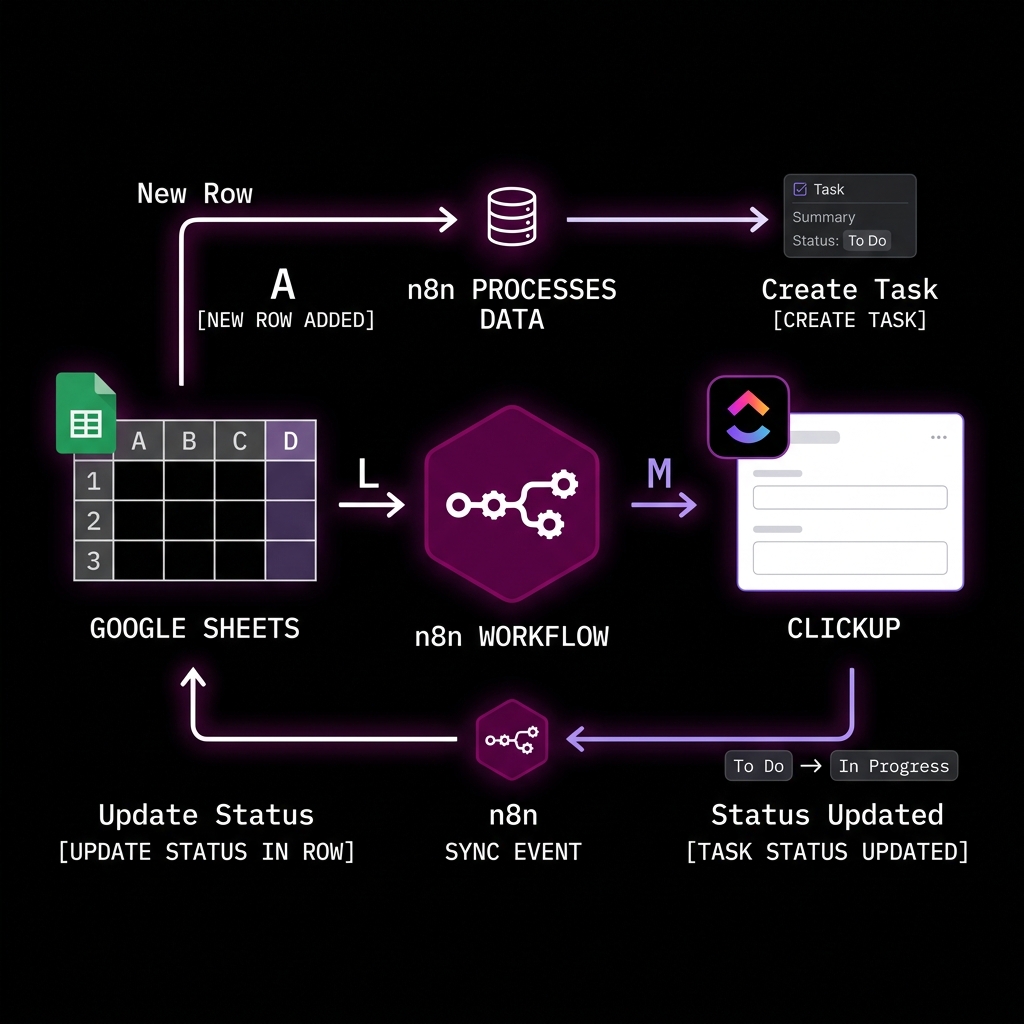
This workflow polls the Google Sheet every 5 minutes using the Google Sheets Trigger node. It watches five specific columns for changes: Task Description, Module, Priority, Comments, and Type.
Step 1 — Detect changes
The trigger fires whenever any watched column changes in any row. n8n passes the full row data downstream, including the row number.
Step 2 — Check if a ClickUp task already exists
The first thing we do is check whether the row already has a Clickup Ref value (a URL back to the ClickUp task). This is the upsert key.
If: $json['Clickup Ref'] is empty
  → True branch: Create a new task
  → False branch: Update the existing task
Step 3a — Create a new task
If no ClickUp ref exists, we create a new task. The task name is derived from the first 60 characters of the task description (ClickUp has a name length limit). The task body is built as structured markdown:
Row#: 42
Description: The login button is unresponsive on mobile Safari
Module: Authentication
Comments: Occurs only on iOS 17+
Created Date: 2026-05-15
Priority is mapped from plain text to ClickUp’s numeric scale:
| Sheet | ClickUp |
|---|---|
| P0 | 1 (Urgent) |
| High | 2 |
| Medium | 3 |
| Low | 4 |
Tags are set automatically based on the issue type (bug, feature, etc.).
Step 3b — Update an existing task
If the Clickup Ref column already has a value, we extract the task ID from the URL and call ClickUp’s update endpoint instead. This keeps the task body and metadata in sync whenever the sheet row is edited.
$json['Clickup Ref'].extractUrlPath().split('/')[2]This expression pulls the task ID out of a URL like https://app.clickup.com/t/abc123xyz.
Step 4 — Write the ClickUp URL back to the Sheet
After a new task is created, we immediately update the Clickup Ref column in the same row. This is what makes the upsert work: the next time this row triggers the workflow, it will find a reference and route to the update branch instead.
Workflow 2 — ClickUp-to-Sheet Status Sync
This is a much simpler, event-driven workflow. It uses the ClickUp Trigger node which listens for taskStatusUpdated webhook events from ClickUp.
Step 1 — Receive the event
When any task in the workspace changes status, ClickUp sends a webhook payload to n8n. The payload includes the task ID and the new status.
Step 2 — Update the Sheet row
We use the Clickup Ref column as the lookup key (matching on https://app.clickup.com/t/{task_id}). The Status column is updated with the new value, formatted in title case:
$json.history_items[0].after.status.toTitleCase()That’s the entire workflow — two nodes, no complexity.
What the Sheet Looks Like
| Created Date | Module | Task Description | Priority | Status | Clickup Ref |
|---|---|---|---|---|---|
| 2026-05-10 | Auth | Login fails on Safari | High | In Progress | https://app.clickup.com/t/abc123 |
| 2026-05-14 | Dashboard | Chart doesn’t load | Medium | Open |
The Clickup Ref column starts empty when a row is first added. Within the next polling cycle (≤5 minutes), the task is created and the link appears. From that point forward, any edit to the row updates the task, and any status change in ClickUp reflects back.
Key n8n Patterns Used
Polling trigger with column watching — Rather than triggering on every sheet change, the Google Sheets Trigger is configured to watch specific columns. This prevents noise from unrelated edits like someone widening a column.
Upsert via conditional routing — A simple If node on field emptiness replaces the need for any custom code or lookup tables.
Extracting structured data from URLs — n8n’s expression engine can chain JavaScript methods like .extractUrlPath().split('/') inline, avoiding the need for a Function node.
Bidirectional sync without infinite loops — The two workflows don’t interfere with each other because Workflow 2 only updates the Status column, which is not one of the columns watched by Workflow 1’s trigger. A clean separation by column prevents feedback loops.
Tradeoffs and Limitations
5-minute polling delay — The Sheet-to-ClickUp direction isn’t real-time. For most issue tracking contexts, this is acceptable. If you need instant sync, you’d need to add a Google Apps Script onEdit trigger that calls an n8n webhook instead.
One-way status sync — Status only flows from ClickUp to Sheets. If someone manually edits the Status column in the Sheet, it won’t update the ClickUp task. This is intentional — ClickUp is the source of truth for task state.
No deletion handling — Deleting a row in the Sheet does not close or archive the task in ClickUp. That would require additional logic to detect removed rows.
When to Use This Pattern
This setup works well for teams that:
- Have non-technical stakeholders who are more comfortable in Sheets than in project management tools
- Want a paper trail in a spreadsheet for reporting or auditing
- Don’t want to migrate everyone to a new tool, but still need the dev team to work in their preferred task tracker
It’s a lightweight integration that respects the workflow habits of both sides, without requiring any custom API code or third-party sync tools.
Tools Used
- n8n (self-hosted) — workflow orchestration
- Google Sheets — issue log and reporting surface
- ClickUp — engineering task management
- Google OAuth2 — authentication for Sheets access
- ClickUp API — task creation, update, and webhook events